Using Your Phone as a Hotspot: How to Share Your Internet Connection the Right Way


If no Wi-Fi is available, you can easily use your smartphone as an internet connection for other devices. Whether you want to work on your laptop while travelling, connect your tablet, or give a friend temporary internet access, a mobile hotspot is the ideal solution. Using your phone as a hotspot works on virtually any modern smartphone. Both iPhones and Android devices allow you to set up a hotspot in just a few seconds.
In this guide, you’ll learn:
- how to enable a mobile hotspot
- the differences between iPhone and Android
- what to consider regarding data usage and costs in Switzerland
- what you should know about encryption and security
You’ll also find practical tips for maintaining a secure and stable connection.







What Is a Hotspot and How Does It Work?
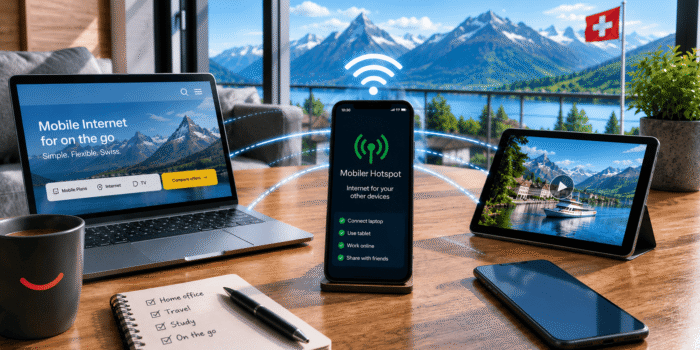
A hotspot turns your smartphone into a small mobile router. Your phone uses its mobile data connection and shares it as a Wi-Fi network for other devices. Instead of connecting to a traditional Wi-Fi network, your laptop, tablet, or another device accesses the internet through your smartphone.
Once the hotspot has been enabled, it appears in the list of available Wi-Fi networks. Other devices can connect using the network name (SSID) and access the internet after entering the password. All internet traffic is then transmitted through your mobile phone plan, meaning that any data used is deducted from your mobile data allowance.
Setting up a hotspot is straightforward and works similarly on almost all modern smartphones. Depending on the manufacturer, only the names of certain menus or settings may differ.
| Connection Method | Description | Typical Use |
| Wi-Fi Hotspot | Smartphone creates a Wi-Fi network | Laptops, tablets, PCs |
| USB Tethering | Connection via USB cable | Single computer requiring a stable connection |
| Bluetooth Tethering | Connection via Bluetooth | Devices with low data usage |
Wi-Fi Hotspot vs. USB and Bluetooth Tethering
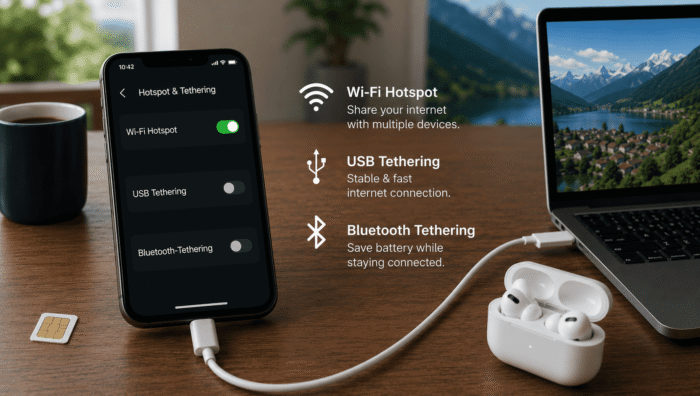
There are several ways to share your internet connection with other devices. The best option depends on how you intend to use it.
- Wi-Fi Hotspot: This is the most convenient solution. Multiple devices can connect simultaneously, making it ideal when you’re on the go.
- USB Tethering: Your smartphone connects directly to a computer via a USB cable. This option is generally the most stable and also charges your phone while in use.
- Bluetooth Tethering: Bluetooth consumes less power but offers slower speeds than Wi-Fi or USB. It’s best suited for applications with low data requirements.
| Method | Speed | Advantages | Disadvantages |
| Wi-Fi Hotspot | High | Supports multiple devices simultaneously | Higher battery consumption |
| USB Tethering | Very High | Stable connection, charges the phone | Requires a USB cable |
| Bluetooth Tethering | Low | Energy-efficient | Lower bandwidth |
Setting Up a Hotspot on an iPhone
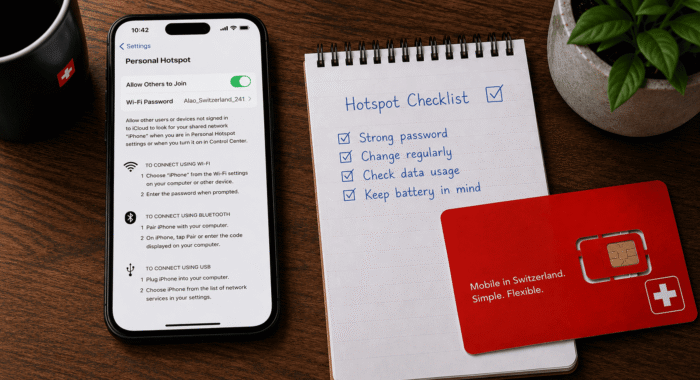
On an iPhone, this feature is called Personal Hotspot. Regardless of your mobile provider, the setup process is almost identical. You can activate a Wi-Fi hotspot on your iPhone in just a few steps and immediately connect other devices.
Step-by-Step: Enable a Wi-Fi Hotspot on an iPhone
Follow these steps to enable your hotspot:
- Open Settings.
- Tap Personal Hotspot.
- Turn on Allow Others to Join.
- Check your Wi-Fi network name and password, or change them if necessary.
- On the second device, open the Wi-Fi settings.
- Select your hotspot from the list of available networks.
- Enter the password and connect the device.
After a few seconds, the connection will be established. Alternatively, compatible devices can connect via a QR code or by using Wi-Fi or Bluetooth pairing. Most users never change their hotspot password, but you can easily update it at any time in the settings if you prefer.
Setting Up a Hotspot on Android
On Android devices, the menus may vary slightly depending on the manufacturer. Whether you use a Samsung Galaxy, Google Pixel, Huawei, Xiaomi, or another Android smartphone, the basic steps are almost identical. This means you can quickly set up a hotspot regardless of the device model.
Step-by-Step: Enable a Mobile Hotspot on Android
Follow these steps to activate a mobile hotspot on an Android device:
- Open your smartphone’s Settings.
- Go to Network & Internet or Connections.
- Tap Hotspot & Tethering.
- Enable Wi-Fi Hotspot.
- Set a network name (SSID) and choose a strong password that includes numbers and special characters.
- On the second device, open the list of available Wi-Fi networks.
- If the hotspot does not appear immediately, refresh or scan again.
- Select the hotspot and enter the password.
Depending on the manufacturer, you may also find additional hotspot settings such as automatic shutdown, data limits, or the maximum number of connected devices. Once the hotspot is active, you can connect other devices and share your internet connection.
Mobile Hotspots in Switzerland: What You Need to Know About Data Usage and Costs
A mobile hotspot works in Switzerland in the same way as it does in most other countries. The important thing to remember is that every connection through the hotspot uses the data allowance of your smartphone plan. If you stream videos on a laptop, download large files, or connect several devices at the same time, your data usage will increase accordingly.
Most Swiss mobile providers include tethering in their standard plans. However, it is still worth checking the terms of your contract or data plan, as some tariffs may have restrictions or require additional options.
You should be especially careful when travelling abroad. If you use your hotspot while roaming, the data is also deducted from your mobile plan. Depending on your destination, this can result in significant additional charges.
Keep an eye on your data usage and review your provider’s roaming conditions before travelling. If you regularly work on the go or frequently share your internet connection with other devices, a plan with a large or unlimited data allowance is often the better choice.
| Situation | Data impact | Recommendation |
| Browsing & email | Low | Usually no issue with most plans |
| HD or 4K streaming | High | Make sure you have enough data |
| Video conferences | Medium to high | Prefer a stable connection |
| Hotspot abroad | Potentially very high | Check roaming terms in advance |
Even though a hotspot is usually quick to set up, problems can occasionally occur. In many cases, the cause is a small setting or an unstable mobile connection.
First, check whether the hotspot is actually enabled and whether the network name is visible. If an error message appears when connecting, the password is often incorrect or may have been changed accidentally. Re-enter the password and try again.
Connection interruptions can happen when the mobile signal is weak or when the smartphone is in power-saving mode. Restarting the phone solves many issues immediately.
Because an active hotspot consumes a significant amount of battery power, it is a good idea to keep the phone connected to a charger during longer sessions. For better security, always use WPA2 or WPA encryption, keep your phone updated with the latest security patches, and choose a strong password. If you frequently use your hotspot in public places, using a VPN can provide an additional layer of protection for your data.
Conclusion: How to Use Your Phone as a Hotspot Safely and Efficiently
Setting up a hotspot takes only a few seconds, regardless of whether you use an iPhone or an Android device. With the right settings, you can securely and conveniently share your internet connection with other devices.
The most important things to keep in mind are your data allowance, battery life, and a strong password. If you enable your hotspot only when needed and turn it off afterward, you’ll save battery power while also improving security. This way, you can stay connected and productive wherever you are.
Frequently Asked Questions
The hotspot feature itself does not use additional data. What matters is what the connected devices are doing. For example, if you stream videos on your laptop or download large files, your data usage will naturally be much higher than when simply browsing the web on your smartphone.
With most mobile providers, the hotspot feature is included at no extra charge, allowing you to share your internet connection freely. However, it’s always worth checking your plan’s terms and conditions, as some tariffs may include restrictions or specific policies regarding tethering.
The maximum number of connected devices depends on your smartphone model. Many devices support between five and ten simultaneous connections, while some newer models allow ten or even more devices. Keep in mind that the available bandwidth is shared among all connected devices. The more smartphones, tablets, or laptops connected, the lower the speed each device may experience.
A hotspot uses both the mobile network and Wi-Fi at the same time, which significantly increases power consumption and reduces battery life. If you plan to use your hotspot for an extended period, it’s recommended to keep your smartphone connected to a charger or use a power bank.
Yes. A mobile hotspot generally works abroad as long as you have mobile network coverage. However, remember that your provider’s roaming rules and charges still apply. Depending on your destination and mobile plan, additional roaming fees may be incurred.
Always use a long, unique password that includes letters, numbers, and special characters. Enable WPA2 or WPA3 encryption whenever available, and only share your password with people you trust. If necessary, change the password regularly. For additional security—especially when handling sensitive information or using public networks—a VPN is highly recommended.